
Stop Letting Bad Forms Kill Your Conversions
Here’s a checklist that helps you optimize your form for better conversion.

Picture this: someone’s ready to purchase the service you provide. Their finger hovering over the keyboard… and then your form hits them with a dozen fields, a cryptic error message, and a button that says Submit.
Poof - they’re gone.
The truth? Not all forms convert. You need to build forms in a way -
that is highly relevant
easy to fill up
doesn’t scare users away
Here’s a checklist that helps you optimize your form for better conversion:
□ Keep fields to a minimum, don’t put irrelevant fields.
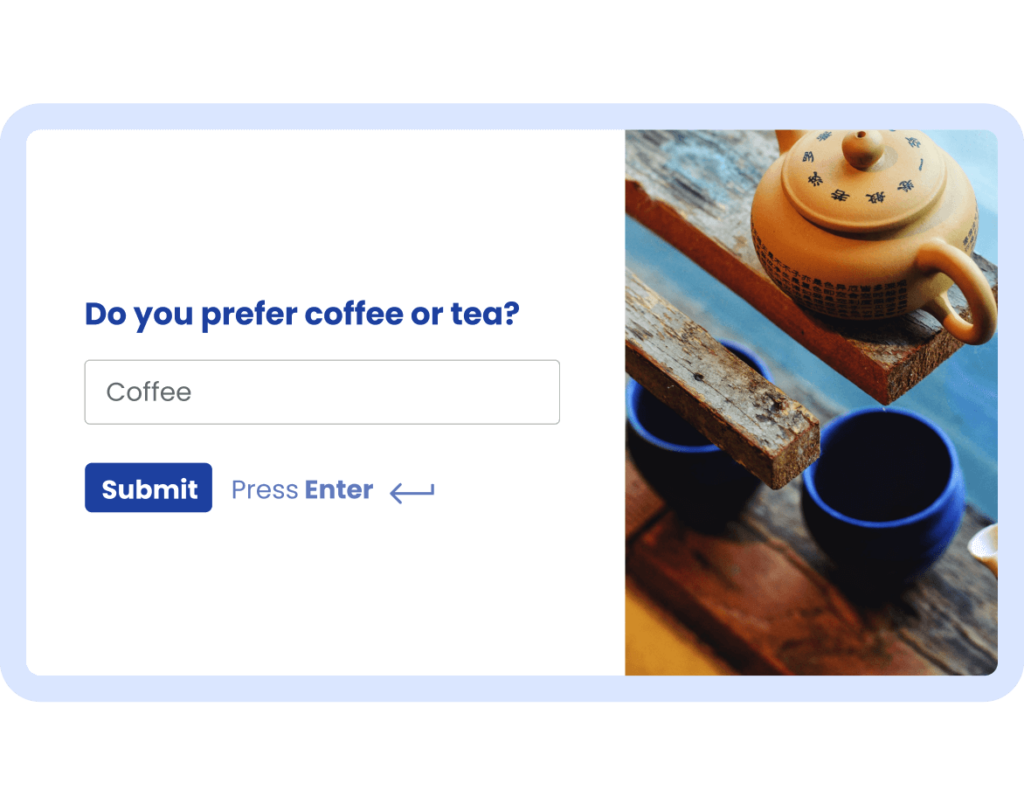
□ Use conversational forms and ask one question at a time.
□ Show progress in multi-step forms, break down large forms into different sections.
□ Use conditional logic to show only relevant fields.
□ Personalize confirmation messages according to the user’s submissions.
□ Make your purpose obvious, state exactly what they’ll get, and why it’s valuable.
□ Prioritize mobile-first design for fast loading, scaling perfectly, and being thumb-friendly. □ Craft a benefit-driven CTA that inspires specific action.
□ Build trust right on the form by adding privacy reassurances or security badges.
□ Improve speed and performance by optimizing scripts, compressing images, and keeping code clean.
□ Keep design distraction-free, keep it minimal, and visually dominant.
□ Don’t ask for sensitive info too early; start with low-commitment fields.
□ Provide clear, helpful error messages that include clear and simple instructions.
□ Tailor forms to context, i.e., a free trial form should look and feel different from a webinar registration form.
□ Test, optimize, and repeat A/B tests on headlines, layouts, field order, and CTAs.
□ Position your forms wisely, where intent is high (end of a blog post/product page).
□ Providing a quality lead magnet strengthens the bargain.
Giving you all these tips is easy, I agree. So, you might ask, how to check the boxes?
Let me provide a descriptive demonstration based on my experience that might help you check the boxes from above.
How can you complete the checklist?
Let’s check out how you can do the technical things on the checklist with Fluent Forms.
Create conversational forms for free with Fluent Forms, or convert traditional forms into conversational ones. Style them according to your brand color and theme.
Use the form-step field to create multi-step forms, name each section, such as contact details, product feedback, and additional message for a long customer feedback form.
Conditional logic can be used to display fields as per the user’s selection. Branch those logics as you wish. You can also group the conditions. Here’s a calculator I created using conditional logic that might help you understand: waist-to-height ratio calculator with conditional logic.
Use containers to create multi-column forms for mobile optimization.
The email notification feature can be used to build trust. For personalization, AI form builder can be used to customize confirmation messages.
Bonus tip:
Input field label customization - don’t write anything fancy, label them so that it’s self-explanatory.
And your forms are ready for conversions.
By the way, these given features are in Fluent Forms, and some are common to most of the form builders.
That’s it for today.
Here’s to fewer abandoned forms and more happy leads!
Team Fluent Forms
Got a question or a success story? Drop it in the comments. We’re excited to connect!
Stay tuned for more insights!